AudioTools can now send live SPL data from your iOS device to any web browser— watch levels from backstage, in the lobby, the next room, or the next state.
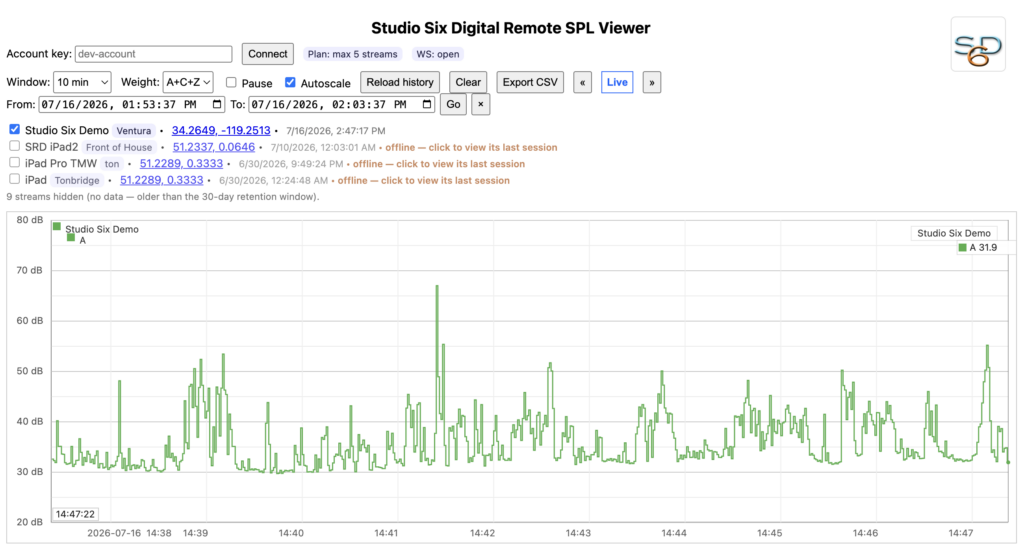
That’s a real iOS device streaming into our public demo account.
How it works
1. Run SPL Graph or SPL Traffic Light in AudioTools and turn on Remote SPL.
2. Open the Viewer in any browser — phone, laptop, or the big screen in the control room. http://studiosixdigital.com/remotesplviewer/
3. Enter your Account Key. Every device on your key appears, live.
In the Viewer
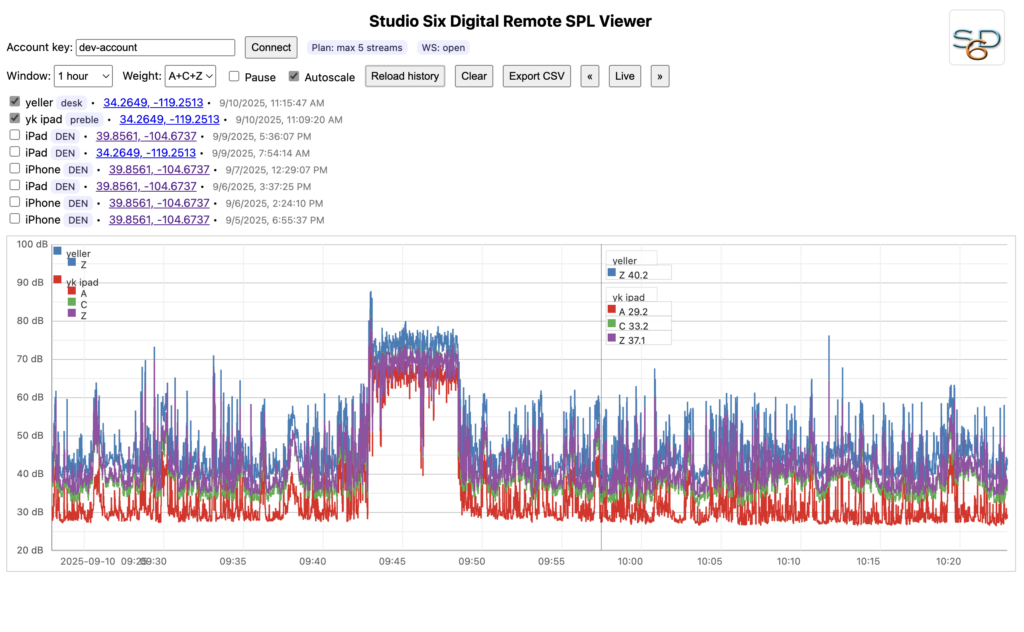
• Multiple devices on one chart, updating live
• A, C or Z weighting
• Windows from 10 minutes to 24 hours — with 30 days of history to scroll back through
• Export any window to CSV
• Each device shows its name, location and position on a map
Subscription Information
• Subscriptions allow access to the Remote Monitoring of sound levels in SPL Graph or SPL Traffic Light, (more information below)
• Subscription length is one month, and allows Remote Monitor access for that time
• Pricing is $19.99/month for 1 device, $49.99/month for 1-5 devices, and $149.99/month for 1-12 device simultaneous monitoring
• Payment will be charged to your iTunes Account at confirmation of purchase
• Subscription will automatically renew unless auto-renew is turned off at least 24-hours before the end of the current month
• Your account will be charged for renewal within 24-hours prior to the end of the current month, at the price listed above
• Subscriptions may be managed and auto-renewal may be turned off by going to your Account Settings after purchase
• Any unused portion of the free trial period will be forfeited when a subscription is purchased
• Buy the subscription that matches the number of iOS devices that you wish to monitor simultaneously
How To Use Remote SPL Monitoring
Make sure you have either the SPL Graph module, or SPL Traffic Light. Then go to the setup page, and tap the Remote SPL Logging button. Start your subscription, turn it on, and name your device and location. Now, anytime either module is running, data will be streamed to the server, and you can watch it in a browser.
To get the account code for the browser, go back to the Remote SPL Logging Setup page, tap View On Browser, and copy the code, or scan the QR code. Enter this code in the viewer on any device and you’re ready to go.