AudioTools includes a versatile and powerful system for saving and recalling test data and audio files, exporting them to a computer, and importing them into AudioTools running on another iOS device.
This feature is available throughout the app, in any module that saves a graph, and also in SPL Pro and STIPA.
Some modules can also save audio files. These include SPL Graph, Impulse Response, and the Recorder.
Complete instructions on transferring data files from one instance of AudioTools to another are available here.
Also see our Save to Photo Roll option.
Naming Files
You can name a file with any combination of up to 32 letters, numbers, and spaces. Files are stored in folders by file type (like RTA or FFT) so you can use the same file name for different types. There is no limit other than storage space for the number of files that you can store.
Storing Files
When you store a file, it is saved in the place chosen in Settings > General > Storage. This can be the device itself, iCloud Drive, or a folder such as Dropbox. See “Where Files Are Stored” below. If you store on the device, the files are backed up when you back up your device, but if you delete the app the stored files will also be deleted.
In most cases, a tab-delimited file of the raw data will also be saved along with the data needed to restore the graph.
The tab-delimited data file will have the same name that you used to store the file, with the .TXT extension. Microsoft Excel and Apple Numbers will normally open this file directly. The contents of this file will vary by file type, but will always include the date and time of the measurement, in the local time zone.
We recommend using iCloud Drive or a cloud folder to store your files, so that they are safe if the device is lost or the app is deleted.
Here are the files that can be saved
With No job selected, all of these files are stored in the “public” folder, in a folder for each module. With a job selected, they are stored in that job’s folder. See “Jobs” below.
Jobs
Requires AudioTools 18.16 or later, or CinemaTools 5.13 or later (iOS / iPadOS 15 or later). Earlier versions do not have Jobs or the Storage screen. Update from the App Store to get them.
A job groups everything you save for one client or one site. It is one folder, with a folder inside it for each tool you use: FFT, RTA, LARSA and so on. Screenshots taken while the job is checked go in the job too.
Jobs are optional. With No job, every tool saves exactly where it always has.
To make a job, go to Settings > General > Jobs and tap New Job. Tap a job to check it. From then on, every tool saves into that job.
You can also reach Jobs from any Save / Recall page:
Nothing moves when you pick a job. Earlier files move only when you move them.
On the Jobs screen, swipe a job, or tap Edit, to rename, export, archive or delete it.
Unfiled is a job that is always in the list. Use it for files that belong to no client yet, and move them later. It cannot be renamed, archived or deleted.
Calibration files are not part of a job. They always stay on the device. The file numbers (Test_, Image_ and the others) keep counting across all jobs.
In the Files app, a job is at Jobs > (job name) > (tool).
Browsing and Recalling Files
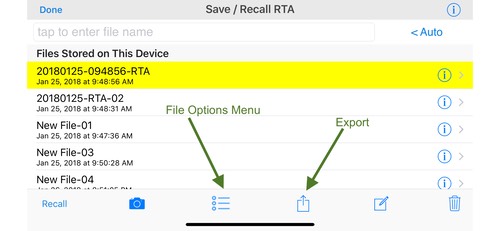
Scroll the list, and tap to select a file. It will be highlighted in yellow when selected. Tap Recall to open the file. When you recall a stored file, the information needed to redraw the graph(s) will be recalled.
Taking Pictures
If your device has a camera, you may take a photo, which is then associated with the stored file name. Tap the camera icon after selecting the file to take a picture. Each stored file can have its own photo, and will take the name of the file, with the .png extension. To see the picture, tap the circle-i icon on the right. This will bring up the info screen for the file, and you can export the image file by tapping the “Export” button.
File Options Menu
Tap the square icon with the arrow pointing up (see image above) to bring up the file options menu. This menu gives you these options:
Copy Selected File Name
Copies the file name to the clipboard.
View in Files App
Brings up the Apple Files app, which has all the folders for the different types of tests. From here you can navigate to individual files and copy or email them if needed.
Sort Files By Name / Date
Tapping this choice will change the sort order for the file list either alphabetically by name, or by date with the most recent files on the top of the list.
Auto-Save Options
Set the Auto-Save Options for the current module, such as RTA or FFT.
Clear Recalled Graphs
For some modules, this will remove previously displayed stored graphs from the main screen.
Delete All Files in List
As it says, this will delete every file in the list for the current module. So, if you are in the FFT module, the FFT data and result files in the list will be deleted.
Export Button
The square icon with the arrow pointing up lets you export the current selection to another application, such as Excel or Numbers, or to send the file using email, a message, or many other apps. It also allows you to save the file locally to the Files app, or copy it to Notes. The options available will depend on exactly what apps you have installed.
This button lets you export one file at a time. To move many files at once, export a job as a zip file, use the Files app, or store your files in iCloud Drive or a cloud folder. More information about these is on this page.
Storing a Note File
Tap any file name to highlight it on the screen, and then tap the square button with a pencil in it. This will create a text note with the same base filename as the stored file, and the extension “.log”.
Deleting Files
When you delete a file, all files associated with that file name are deleted. This may include graph data, tab-delimited data, a photo, a notepad, and in some cases audio.
Using the Files App
The Files app will allow you to directly access the files saved in AudioTools, wherever they are stored. Use the options menu (described above). This will open the folder for the current module. You will find folders for each module, like RTA or FFT, as well as the calibration and reference folders, and a Jobs folder if you use jobs. You can also access this through the Utilities->Files menu.
Where Files Are Stored
Requires AudioTools 18.16 or later, or CinemaTools 5.13 or later (iOS / iPadOS 15 or later). Earlier versions do not have Jobs or the Storage screen. Update from the App Store to get them.
Settings > General > Storage chooses the one place where the app keeps everything it saves: measurements, screenshots, reports, imports, reference curves, checklists and jobs.
There are three choices:
When you switch, your reference curves, imports and checklists are copied to the new place at once. Nothing already there is replaced. You are asked whether to copy your measurements too. That can take a while and a lot of space. If you choose Don’t Copy Measurements, they stay where they were, and the Storage screen says where.
Calibration files always stay on the device, whichever place you choose.
If iCloud Drive or the chosen folder cannot be reached, the app saves on the device for that run and the Status line says so. Nothing is lost. Choose the place again once it is back.
Jobs follow the storage. On iCloud Drive or a chosen folder, AudioTools and CinemaTools see the same jobs when they use the same place. On This iPad, only the one app sees them.
Tap the (i) on the Storage screen for the same information in the app.
Additional Media Files
If there are additional files that have been created, they will appear in the same folder, with different extensions, such as .wav, .aif, or .caf for audio files, .txt for notepad files, and .jpg or .png for image files.
GPS Location
The current latitude and longitude coordinates are stored along with the data. The location will be shown in your tab-delimited file. This feature uses the location services of your device. Note that it will often take several seconds for accurate data to be obtained. Location data is shown when you browse to a stored file.